Faculty Grade Entry
How to Access Grade Entry
- Go to MyPortal
- Enter your W# and password
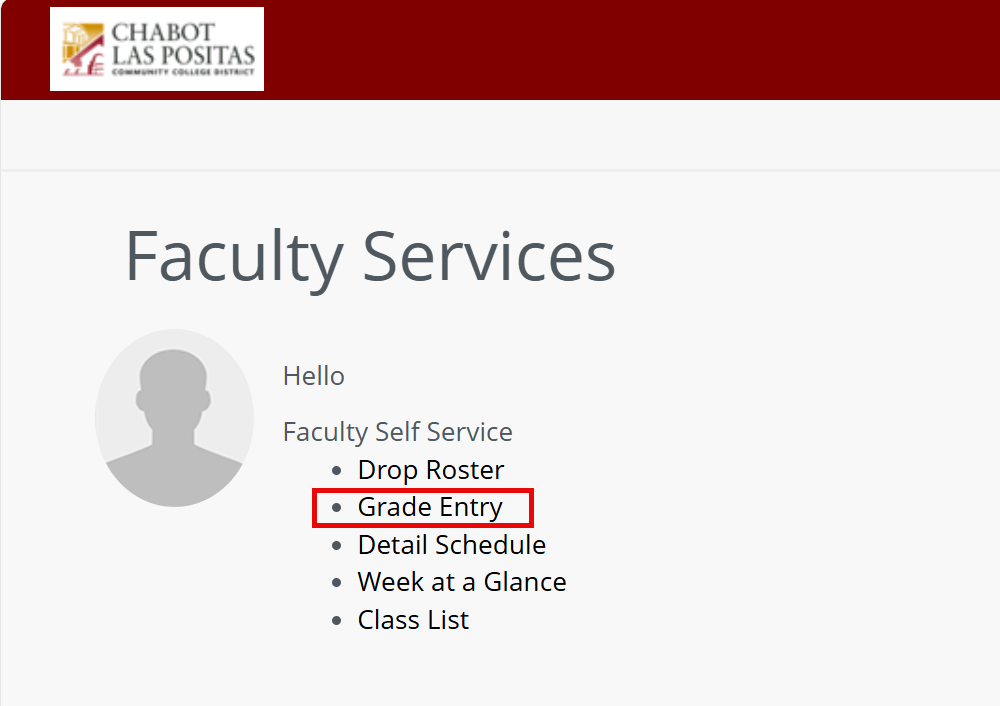
- Navigate to the Faculty Dashboard and click on Grade Entry
How to Enter Grades
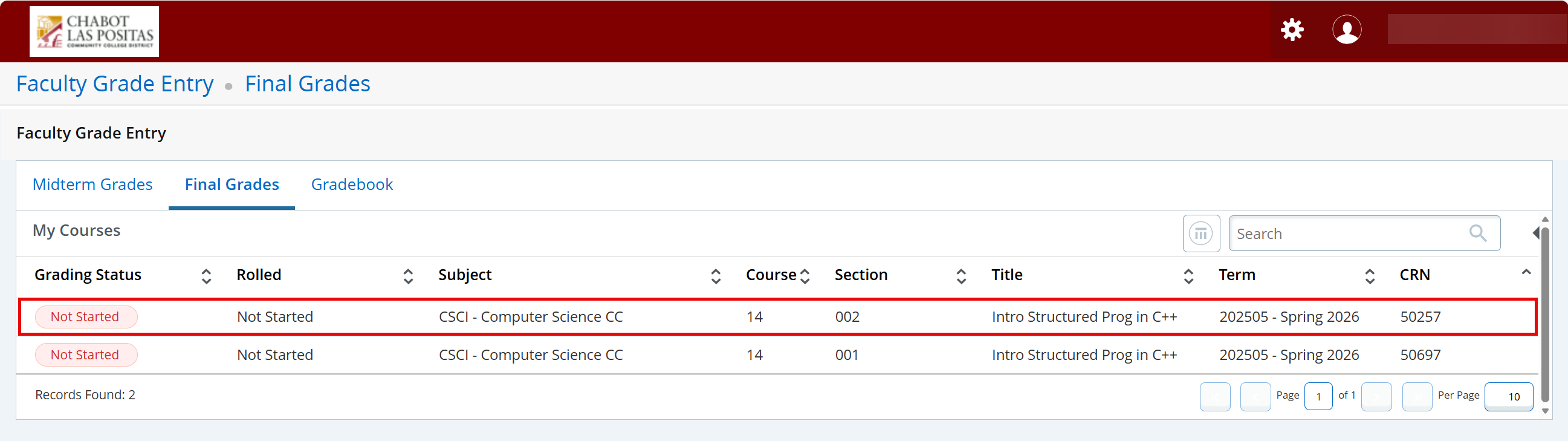
- Click on any field in the class listing to open Grade Entry for that class.
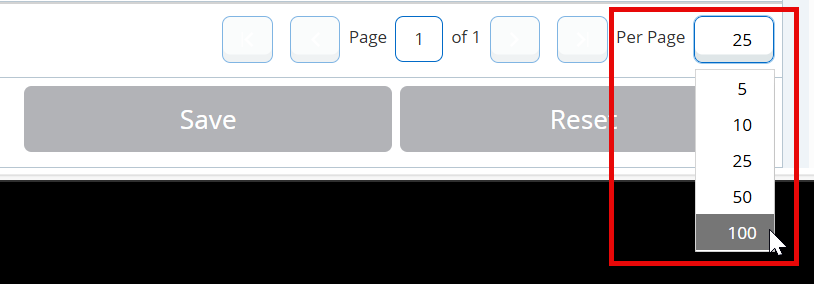
- Navigate to the bottom right corner and change the option to show 100 students per
page. This ensures you are able to enter grades for all of your students on one page.
- Select the grade you are assigning each student.

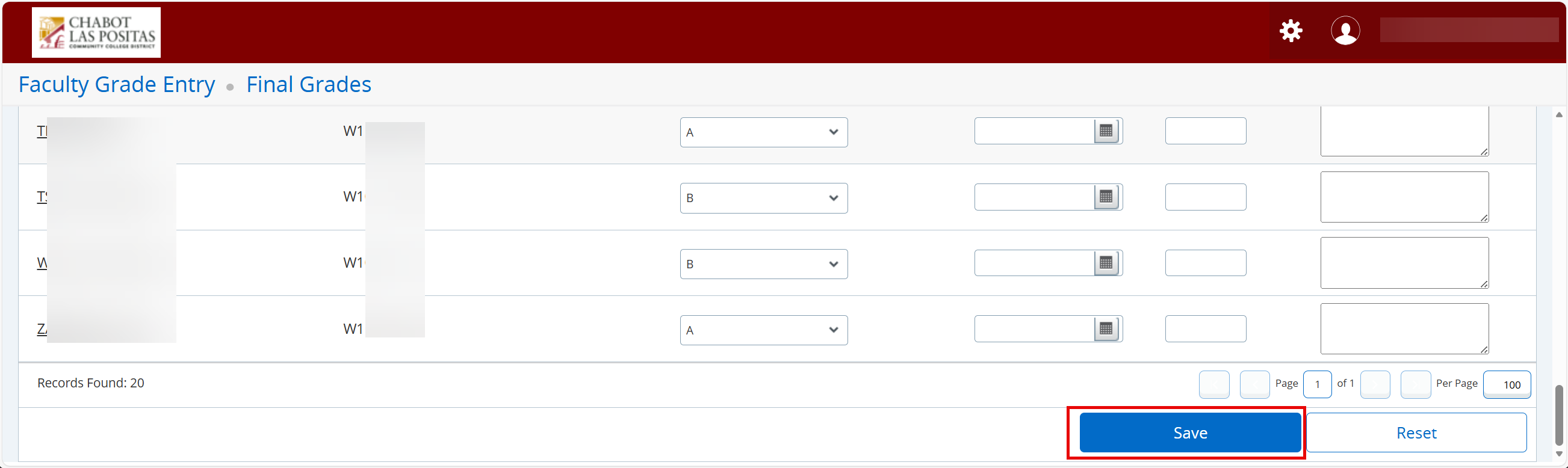
- Click the Save button in the bottom right corner. Clicking Reset will reset all fields
so you can start again.
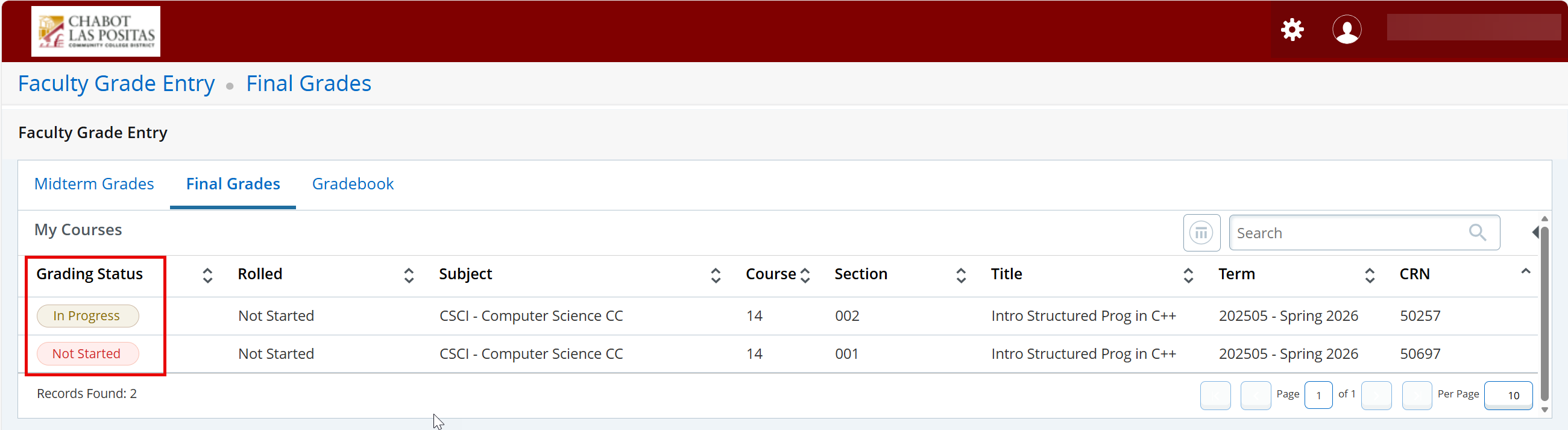
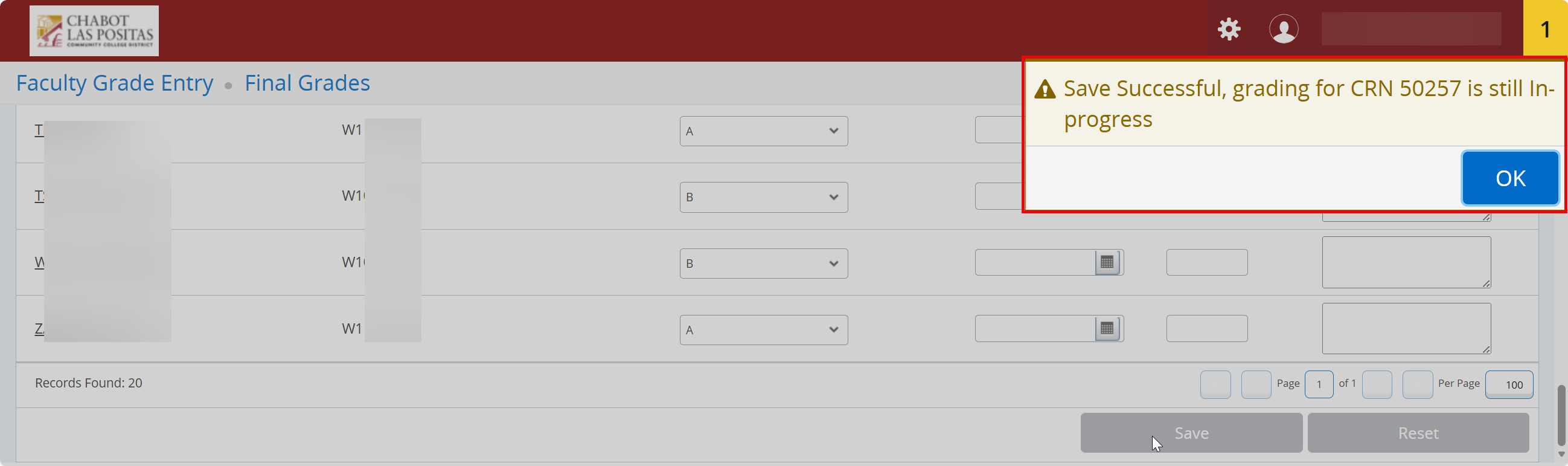
- If students remain ungraded, you will receive a notification confirming grading is
still in-progress.
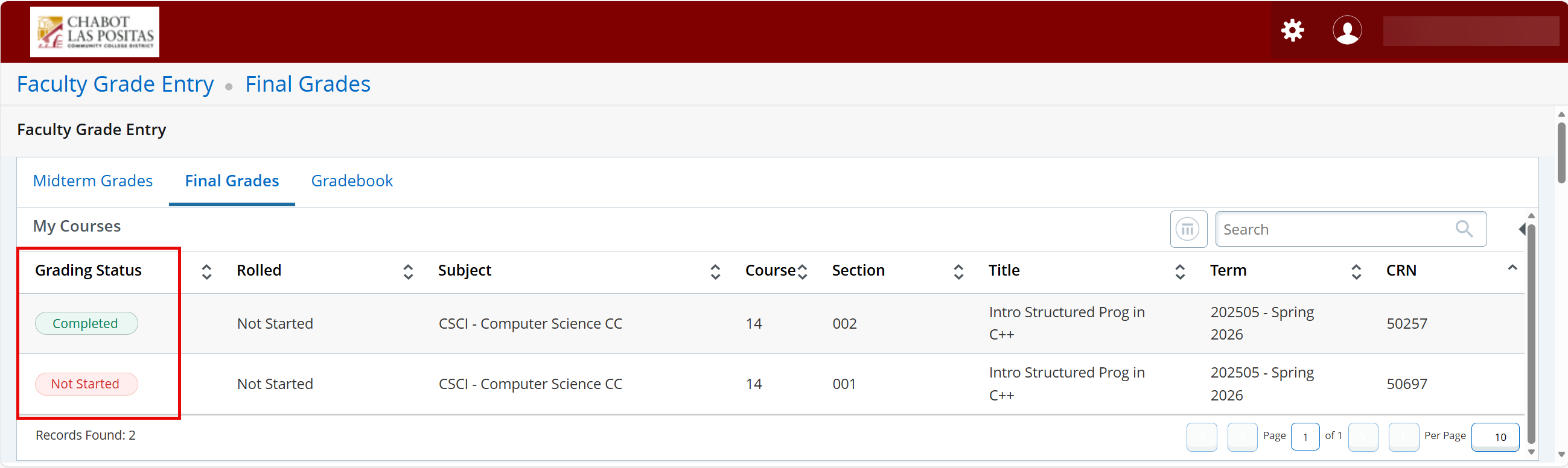
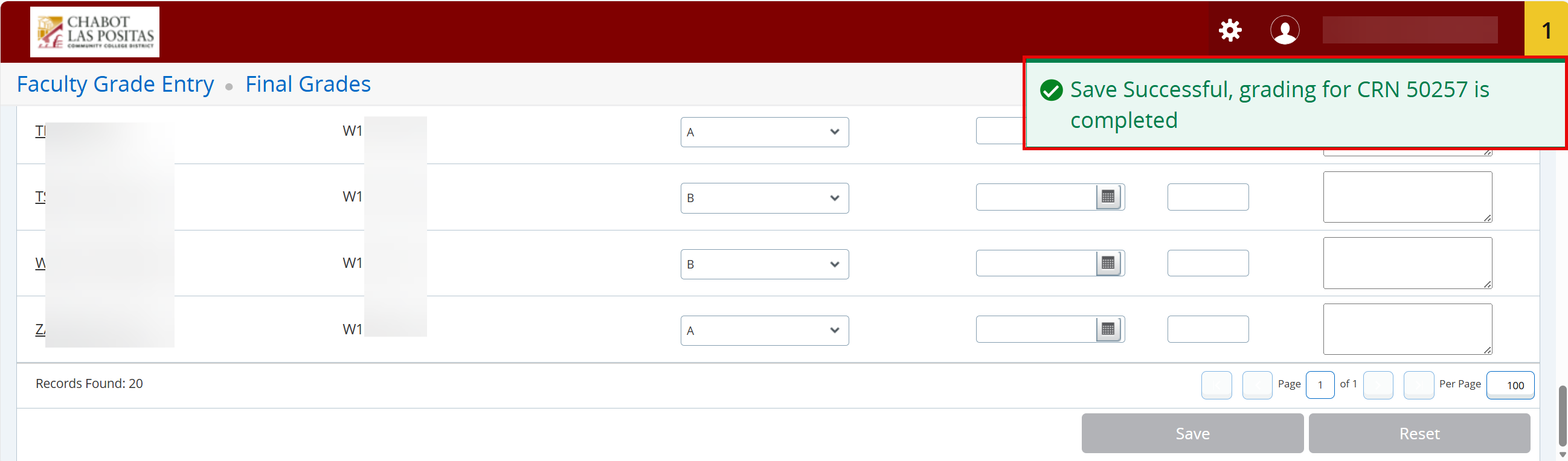
- If all students were assigned grades successfully, you will receive a notification
confirming grading is completed.
- The Grading Status section will confirm if Grade Entry is Not Started, In Progress,
or Completed.